How do I remove the background from my logo or artwork?
Upload your logo in a quote first. The design card can open a separate Remove Background tool, and Edit Image also has a Background Removal tool under its extra tools.
In the full image editor, choose Background Removal. Adjust Tolerance and Softness, then choose whether to include Enclosed areas or Connected only. The tool also offers Specks, Fringe and Remove whole background. Review the whole image because a higher tolerance can remove colours that are part of the logo.
The separate tool offers Auto, Manual and Request. Auto samples the colour around the image edges; Manual removes areas you click and has tolerance and connected-area controls; Request lets you describe the change for the artwork team and choose Save Instructions to add it to the design notes. Auto stops if it would remove nearly the whole image.
When the preview is right, choose Save Image. The transparent result is saved with the design and the quote preview refreshes. Use Reset Image in the separate tool if you need to start that removal again.
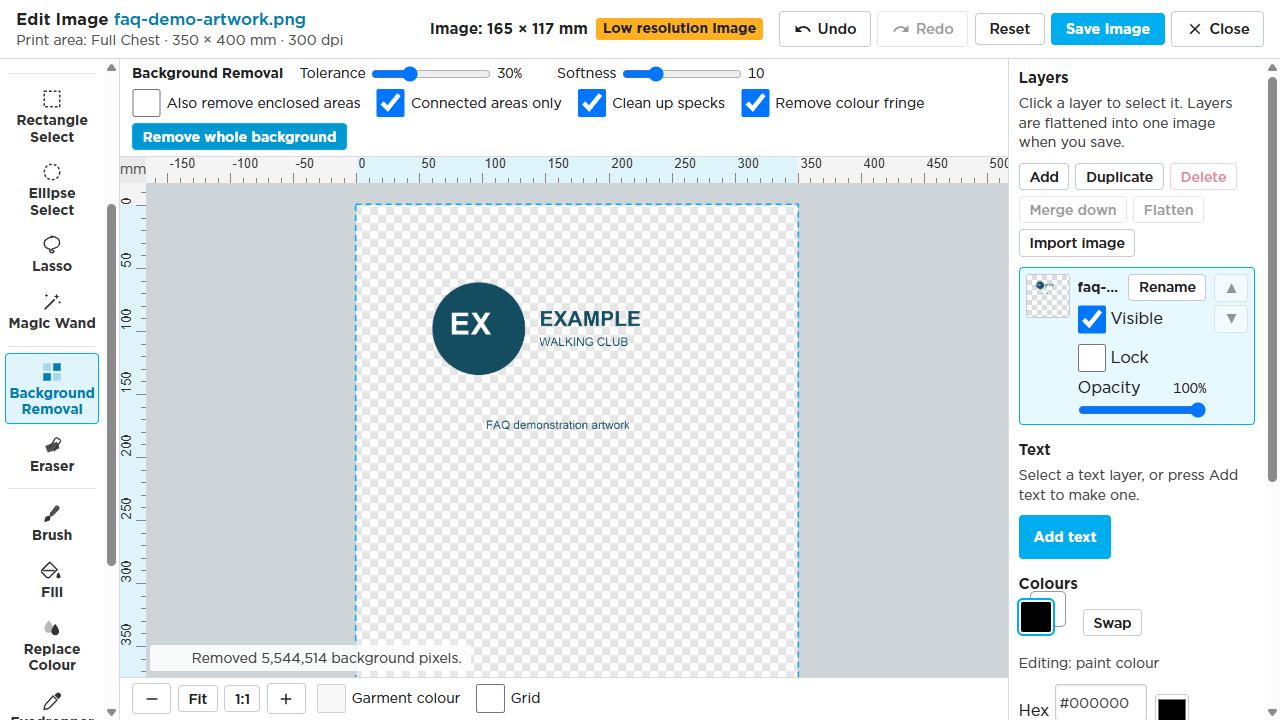
Select the screenshot to open it at full size. The images use example artwork; your order and available choices may look different.