How do I create a standard text design and make it fit?
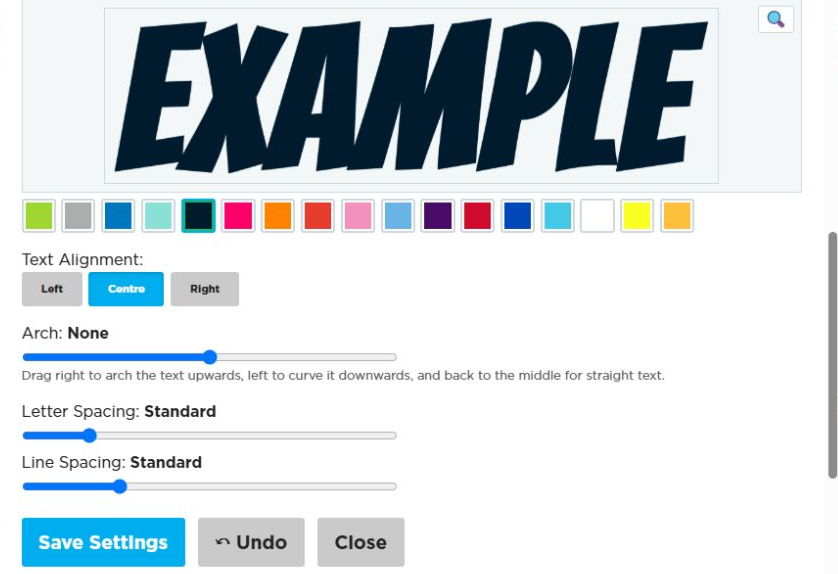
In the design section of your quote, choose Text and enter your wording in the text-line fields. Select Edit Design Text Settings to open the standard text settings window. Choose the font and colour, then use the available alignment, arch, outline, letter-spacing and line-spacing controls. The window includes a live preview and Save Settings.
Use + Add another line when a phrase should be split instead of squeezed onto one line. After changing the number of lines, review the text fields and preview again. The design section also lets you adjust the design size where a size has been supplied.
A standard text design can contain up to 100 lines, and each saved text line is limited to 50 characters. The page warns that more than 12 characters may make a line very small; that is a readability guide, not the 50-character limit.
If the wording does not fit, shorten it, add a line, reduce spacing or choose a larger print position. Check the product preview after saving.
See styling individual lines for mixed fonts, colours and sizes. Read any pricing message before saving: additional print colours and advanced embroidery styling can change the cost.
Select the screenshot to open it at full size. The images use example artwork; your order and available choices may look different.